Tales From A Lazy Fat DBA

Its all about Databases, their performance, troubleshooting & much more …. ¯\_(ツ)_/¯

Posts Tagged ‘monitoring’

A simple script to automatically catch those intermittent database performance issues …

Posted by FatDBA on December 16, 2023

Hi All,

Occasionally, anticipating the occurrence of a problem becomes unpredictable, and simultaneously, dealing manually with a transient issue to extract necessary information may not always be feasible (mainly due to the rapid resolution of the problem before we can initiate the extraction process). Additionally, there is a requirement for adaptability in the content we aim to extract.

The ensuing approach allows us to attain our primary objectives without resorting to invasive measures. There could be multiple use cases, few of the scenarios would be :
Case 1 : With little changes to it, you can make it employable for gathering solely the system state upon encountering a specific wait event.
Case 2: Can be utilized for gathering 10046, error stack, etc., for the obstructing session when a designated wait event is triggered concurrently with the execution of a known SQL statement (SQL_ID).
Case 3: Utilizable for obtaining hang analysis, system state, and additionally, 10046, error stack for the session causing the obstruction when a specific wait event is encountered.

Let me explain how we can utilize this quick, short but handy code to generate the diagnostic dump like hanganalyze / systemstate / errorstack / 10046 trace etc if any session is found to be waiting on any specific wait event for any specific period of time.

This is the simple script to collect diagnostic information with few of the customizable parameters or inputs i.e. ‘waitevent’ which is for the event we know we have the problem with, ‘seconds’ is the amount of time we think a session can wait on that session before we decide it is stuck and want to trigger dumping and ‘tid’ which is the session we are going to attach to run oradebug against. This could be the waiting session, a blocking session.

In the example, I have modified the code to collect diag info if any session is found to be waiting on “enq: TX – row lock contention” waits above 10 seconds.

set serverout on
spool logit.sql
declare
waitevent varchar2(100):='enq: TX - row lock contention';
seconds number :=10;      
w1 v$session%rowtype;
w2 v$session%rowtype;
tid number := 0;

begin

loop
dbms_lock.sleep(seconds);
begin
select * into w1 
from v$session 
where event=waitevent and wait_time=0 and rownum=1;
dbms_lock.sleep(seconds);
select * into w2
from v$session
where wait_time=0
and sid=w1.sid
and event=waitevent
and seq#=w1.seq# ;
select spid into tid from v$process
where addr=(select paddr from v$session where sid=w2.blocking_session);
dbms_output.put_line('oradebug setospid '||tid);
dbms_output.put_line('oradebug unlimit');
dbms_output.put_line('oradebug hanganalyze 3');  /**If RAC then use -G all**/
dbms_output.put_line('oradebug tracefile_name');
dbms_output.put_line('exit');
exit;
exception
when no_data_found then null;
end;
end loop;
end;
/
exit


-- Result : 
SQL>  
oradebug setospid 6794
oradebug unlimit
oradebug hanganalyze 3
oradebug tracefile_name
exit

PL/SQL procedure successfully completed.

SQL> 

The subsequent instance is intricate yet showcases versatility of this simple script. In this scenario, I encounter an intermittent issue involving sessions experiencing wait times due to TX enqueue row lock contention. While I may not be overly concerned about these sessions, it is crucial for me to understand the actions of the session causing the blockage. Given that I am aware of the SQL being executed during that period, I can leverage this information to ensure accurate trapping of the relevant event.
Here is something that you can do to alter it accordingly.

Let me create a row locking situation and see how it captures stats for a particular SQLID. Below is the row locking case that I have created to test how the scripts catches details for this SQLID ‘0jy18x4pff06k’
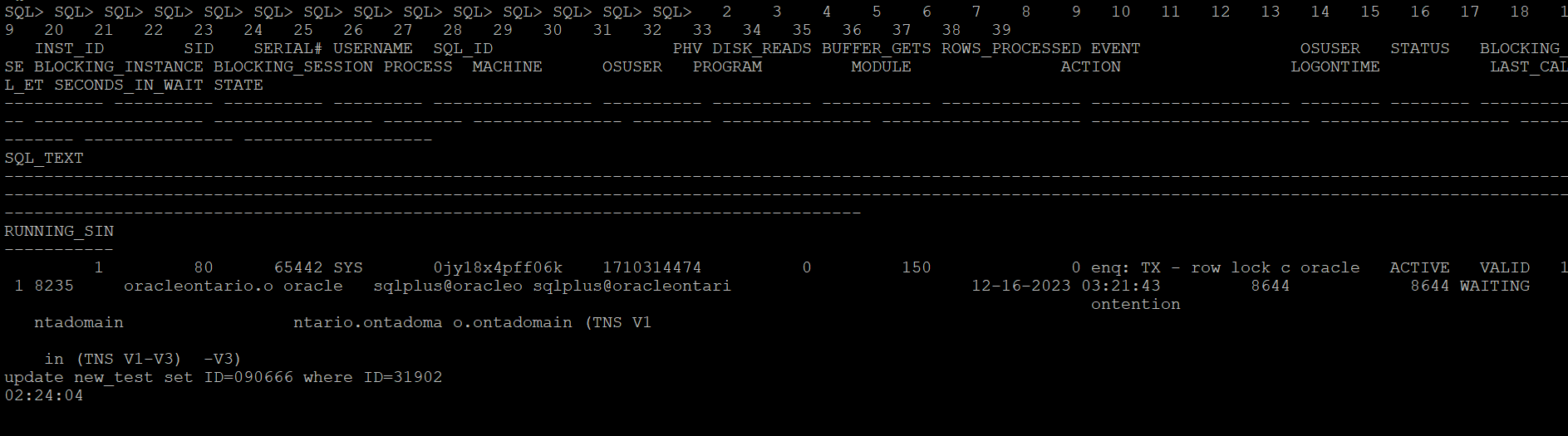
This is the modified version of the script which catches details for the SQL waiting on any specific wait event.

set serverout on
spool logit.sql
declare
waitevent varchar2(100):='enq: TX - row lock contention';
seconds number :=10;
w1 v$session%rowtype;
w2 v$session%rowtype;
tid number := 0;

begin

loop
dbms_lock.sleep(seconds);
begin
select * into w1
from v$session
where event=waitevent and wait_time=0 and sql_id='0jy18x4pff06k' and rownum=1;
dbms_lock.sleep(seconds);
select * into w2
from v$session
where wait_time=0
and sid=w1.sid
and event=waitevent
and seq#=w1.seq# ;
select spid into tid from v$process
where addr=(select paddr from v$session where sid=w2.blocking_session);
dbms_output.put_line('oradebug setospid '||tid);
dbms_output.put_line('oradebug unlimit');
dbms_output.put_line('oradebug dump errorstack 3');
dbms_output.put_line('oradebug event 10046 trace name context forever, level 8');
dbms_output.put_line('oradebug event 10200 trace name context forever, level 1');
dbms_output.put_line('oradebug event 10224 trace name context forever, level 1');
dbms_output.put_line('execute dbms_lock.sleep(20);');
dbms_output.put_line('oradebug event 10046 trace name context off');
dbms_output.put_line('oradebug event 10200 trace name context off');
dbms_output.put_line('oradebug event 10224 trace name context off');
dbms_output.put_line('exit');
exit;
exception
when no_data_found then null;
end;
end loop;
end;
/
exit


-- Result : 
SQL>  
oradebug setospid 6794
oradebug unlimit
oradebug dump errorstack 3
oradebug event 10046 trace name context forever, level 8
oradebug event 10200 trace name context forever, level 1
oradebug event 10224 trace name context forever, level 1
execute dbms_lock.sleep(20);
oradebug event 10046 trace name context off
oradebug event 10200 trace name context off
oradebug event 10224 trace name context off
exit

PL/SQL procedure successfully completed.

SQL> 

The next what we can do to trap any such wait events of interest when it exceeds the behnchmark, you can put eveything in a shell script and run it in the loop and execute the oradebug code. Once finished you can look it in the diagnostic_dest for the dump file. For 11g and above, look under subdirectory trace under home directory of ADR.

Next once you have put it in the shell script format, you can call it in the nohup mode and the script will run in background and sit in a loop for the defined condition to hit.

[oracle@oracleontario ~]$ more exec
#!/bin/bash
sqlplus -s '/ as sysdba' @waitdumpv1
[oracle@oracleontario ~]$
[oracle@oracleontario ~]$ chmod 777 exec
[oracle@oracleontario ~]$
[oracle@oracleontario ~]$

[oracle@oracleontario ~]$ nohup ./exec > waitdump2.log
nohup: ignoring input and redirecting stderr to stdout
[oracle@oracleontario ~]$

[oracle@oracleontario ~]$ more waitdump1.log
[oracle@oracleontario ~]$ nohup ./exec > waitdump2.log
nohup: ignoring input and redirecting stderr to stdout
[oracle@oracleontario ~]$ more waitdump2.log
oradebug setospid 6794
oradebug unlimit
oradebug hanganalyze 3
oradebug tracefile_name
exit

PL/SQL procedure successfully completed.

[oracle@oracleontario ~]$
[oracle@oracleontario ~]$

Hope It Helped!
Prashant Dixit

Posted in Uncategorized | Tagged: , , , , | Leave a Comment »

How to monitor your PostgreSQL database using Grafana, Prometheus & postgres_exporter.

Posted by FatDBA on March 24, 2021

Hi Everyone,

I am back with the another post, this time it’s for monitoring PostgreSQL database using one of the popular interactive visualization platform Grafana. I have recently implemented Grafana + Prometheus and created few really cool performance charts and database metric dashboards using one of the popular PostgreSQL metric exporter ‘postgres_exporter‘ to monitor a EDB 12 PostgreSQL database cluster.

I have divided everything in to three parts – Grafana Installation & configuration, Prometheus Installation and Configuration and final postgres_exporter installation and configuration.

let’s first start with Grafana installation and configuration on Linux server (this is EL 7).

Grafana Installation:

1. Disable SELinux

Change SELINUX=enforcing to SELINUX=disabled and Reboot.

vi /etc/sysconfig/selinux

2. Now we need to create Grafana YUM repository

vi /etc/yum.repos.d/grafana.repo

and add following lines to it

[grafana]
name=grafana
baseurl=https://packages.grafana.com/oss/rpm
repo_gpgcheck=1
enabled=1
gpgcheck=1
gpgkey=https://packages.grafana.com/gpg.key
sslverify=1
sslcacert=/etc/pki/tls/certs/ca-bundle.crt

3. Install Grafana now using YUM

yum install grafana

This will install all binaries to location /usr/sbin/grafana-server, copies init.d file to /etc/init.d/grafana-server and default log location would be /var/log/grafana/grafana.log.

4. Install additional font packages

yum install fontconfig
yum install freetype*
yum install urw-fonts

5. Now, enable grafana service

Enable Grafana service on system boot
systemctl enable grafana-server.service

Start it using the following command:
systemctl start grafana-server

6. Check Grafana web interface

http://IPADDRESSorHOSTNAME:3000/

Note: Default username and password is ‘admin‘, and once you login, it will prompt you to set a new password.

Add PostgreSQL as Data Source:

Next we now going to add PostgreSQL as a data source in Grafana.

1. Login to Grafana and go to ‘configuration‘ tab on the left of the console.

2. Add PostgreSQL as a data source, populate all details like hostname, port number, database name, DB user and password, PostgreSQL version and some optional entries like connection limits, SSL details etc. Once done, click on button with name save and test to see if all details are fine.

3. Now you will start seeing PostgreSQL as a data source under data source tab.

Prometheus Installation & Config

All good, now next is to install and configure ‘Prometheus’, this is a time-series database that is optimized for storing and serving time series through associated pairs of time(s) and value(s). You can also use InfluxDB or Graphite as a time series database for Grafana.

1. Download and untar the Prometheus file for your respective OS.
Example:
curl -LO url -LO https://github.com/prometheus/prometheus/releases/download/v2.22.0/prometheus-2.22.0.linux-amd64.tar.gz
tar -xvf prometheus-2.22.0.linux-amd64.tar.gz
mv prometheus-2.22.0.linux-amd64 prometheus-files

2. Create prometheus user, directories and make that account owner for all the files and folders.

sudo useradd --no-create-home --shell /bin/false prometheus
sudo mkdir /etc/prometheus
sudo mkdir /var/lib/prometheus
sudo chown prometheus:prometheus /etc/prometheus
sudo chown prometheus:prometheus /var/lib/prometheus

3. Copy prometheus and promtool binaries from prometheus-files to /usr/local/bin and change ownership

sudo cp prometheus-files/prometheus /usr/local/bin/
sudo cp prometheus-files/promtool /usr/local/bin/
sudo chown prometheus:prometheus /usr/local/bin/prometheus
sudo chown prometheus:prometheus /usr/local/bin/promtool

4. Move consoles and console_libraries directories from prometheus-files to /etc/prometheus folder and change ownership

sudo cp -r prometheus-files/consoles /etc/prometheus
sudo cp -r prometheus-files/console_libraries /etc/prometheus
sudo chown -R prometheus:prometheus /etc/prometheus/consoles
sudo chown -R prometheus:prometheus /etc/prometheus/console_libraries

5. Now time to configure. Create prometheus.yml file

vi /etc/prometheus/prometheus.yml

copy below entries to the YAML file

global:
  scrape_interval: 10s

scrape_configs:
  - job_name: 'prometheus'
    scrape_interval: 5s
    static_configs:
      - targets: ['10.0.0.153:9090']

6. Change ownership of this file

sudo chown prometheus:prometheus /etc/prometheus/prometheus.yml

7. Create prometheus service file

vi /etc/systemd/system/prometheus.service

copy below entries to the file.

[Unit]
Description=Prometheus
Wants=network-online.target
After=network-online.target

[Service]
User=prometheus
Group=prometheus
Type=simple
ExecStart=/usr/local/bin/prometheus \
    --config.file /etc/prometheus/prometheus.yml \
    --storage.tsdb.path /var/lib/prometheus/ \
    --web.console.templates=/etc/prometheus/consoles \
    --web.console.libraries=/etc/prometheus/console_libraries

[Install]
WantedBy=multi-user.target

8. Register systemd service to register prometheus service and start it.

sudo systemctl daemon-reload
sudo systemctl enable prometheus
sudo systemctl start prometheus

and check the status of the service

sudo systemctl status prometheus

[root@canttowin edb]# systemctl status prometheus
● prometheus.service - Prometheus
   Loaded: loaded (/etc/systemd/system/prometheus.service; enabled; vendor preset: disabled)
   Active: active (running) since Wed 2021-03-24 05:55:53 EDT; 4s ago
 Main PID: 17641 (prometheus)
    Tasks: 7
   CGroup: /system.slice/prometheus.service
           └─17641 /usr/local/bin/prometheus --config.file /etc/prometheus/prometheus.yml --storage.tsdb.path /var/lib/prometheus/ --web.console.templates...

Mar 24 05:55:54 canttowin.ontadomain prometheus[17641]: level=info ts=2021-03-24T09:55:54.172Z caller=head.go:714 component=tsdb msg="WAL segment ...gment=10
Mar 24 05:55:54 canttowin.ontadomain prometheus[17641]: level=info ts=2021-03-24T09:55:54.358Z caller=head.go:714 component=tsdb msg="WAL segment ...gment=10
Mar 24 05:55:54 canttowin.ontadomain prometheus[17641]: level=info ts=2021-03-24T09:55:54.455Z caller=head.go:714 component=tsdb msg="WAL segment ...gment=10
Mar 24 05:55:54 canttowin.ontadomain prometheus[17641]: level=info ts=2021-03-24T09:55:54.456Z caller=head.go:714 component=tsdb msg="WAL segment ...gment=10
Mar 24 05:55:54 canttowin.ontadomain prometheus[17641]: level=info ts=2021-03-24T09:55:54.456Z caller=head.go:719 component=tsdb msg="WAL replay c...173255ms
Mar 24 05:55:54 canttowin.ontadomain prometheus[17641]: level=info ts=2021-03-24T09:55:54.478Z caller=main.go:732 fs_type=XFS_SUPER_MAGIC
Mar 24 05:55:54 canttowin.ontadomain prometheus[17641]: level=info ts=2021-03-24T09:55:54.478Z caller=main.go:735 msg="TSDB started"
Mar 24 05:55:54 canttowin.ontadomain prometheus[17641]: level=info ts=2021-03-24T09:55:54.478Z caller=main.go:861 msg="Loading configuration file"...heus.yml
Mar 24 05:55:54 canttowin.ontadomain prometheus[17641]: level=info ts=2021-03-24T09:55:54.481Z caller=main.go:892 msg="Completed loading of configuration …µs
Mar 24 05:55:54 canttowin.ontadomain prometheus[17641]: level=info ts=2021-03-24T09:55:54.481Z caller=main.go:684 msg="Server is ready to receive ...quests."
Hint: Some lines were ellipsized, use -l to show in full.

9. If no issues till here, you are all good, time to check Prometheus WEB GUI, you can access its using below URL.

http://10.0.0.153:9090/graph

10. You can check other stats and other available metrics via GUI console.

11. Now you will start seeing ‘Prometheus’ in the list of data sources along with PostgreSQL which we have added at the first step.

Postgres_Exporter Installation and configuration

Now, when Grafana and Prometheus is all set, time to install and configure postgres_exporter. Postgres_exporter is a popular PostgreSQL metric exporter for Prometheus.

1. Lets create few required directories first.

mkdir /opt/postgres_exporter
cd /opt/postgres_exporter

2. Download and untar the file.

wget https://github.com/wrouesnel/postgres_exporter/releases/download/v0.5.1/postgres_exporter_v0.5.1_linux-amd64.tar.gz
tar -xzvf postgres_exporter_v0.5.1_linux-amd64.tar.gz
cd postgres_exporter_v0.5.1_linux-amd64

3. Copy core file ‘postgres_exporter’ file to /usr/local/bin directory

cp postgres_exporter /usr/local/bin

4. Next, lets create the configuration file for postres_exporter

cd /opt/postgres_exporter
sudo vi postgres_exporter.env

I want to visualize my EDB 12 PostgreSQL stats, so will use below data source details. This is for all database, you can also monitor any specific database.

[root@canttowin edb]# more /opt/postgres_exporter/postgres_exporter.env
DATA_SOURCE_NAME="postgresql://enterprisedb:oracle@10.0.0.153:5444/?sslmode=disable"

5. Next, create the service for postgres_exporter

vi /etc/systemd/system/postgres_exporter.service

put below lines to the service file

[Unit]
Description=Prometheus exporter for Postgresql
Wants=network-online.target
After=network-online.target
[Service]
User=postgres
Group=postgres
WorkingDirectory=/opt/postgres_exporter
EnvironmentFile=/opt/postgres_exporter/postgres_exporter.env
ExecStart=/usr/local/bin/postgres_exporter
Restart=always
[Install]
WantedBy=multi-user.target

6. Next enable service and check status

sudo systemctl daemon-reload
sudo systemctl start postgres_exporter
sudo systemctl enable postgres_exporter

[root@canttowin edb]# systemctl status postgres_exporter
● postgres_exporter.service - Prometheus exporter for Postgresql
   Loaded: loaded (/etc/systemd/system/postgres_exporter.service; enabled; vendor preset: disabled)
   Active: active (running) since Wed 2021-03-24 05:52:17 EDT; 2s ago
 Main PID: 16984 (postgres_export)
    Tasks: 3
   CGroup: /system.slice/postgres_exporter.service
           └─16984 /usr/local/bin/postgres_exporter --web.listen-address=:9187 --web.telemetry-path=/metrics

Mar 24 05:52:17 canttowin.ontadomain systemd[1]: Started Prometheus exporter for Postgresql.
Mar 24 05:52:17 canttowin.ontadomain postgres_exporter[16984]: time="2021-03-24T05:52:17-04:00" level=info msg="Established new database connection...go:777"
Mar 24 05:52:17 canttowin.ontadomain postgres_exporter[16984]: time="2021-03-24T05:52:17-04:00" level=info msg="Semantic Version Changed on \"10.0....o:1229"
Mar 24 05:52:18 canttowin.ontadomain postgres_exporter[16984]: time="2021-03-24T05:52:18-04:00" level=info msg="Starting Server: :9187" source="pos...o:1437"
Hint: Some lines were ellipsized, use -l to show in full.

7. Now we can check status if postgres_exporter (as a target) state information and other details. This we can check it through Prometheus web GUI.

As we have configured postgres_exporter and mapped it with Prometheus, we can also look for many of the expressions that it has created. This you can access on ‘graph’ page under Prometheus GUI console.

You can check it’s immediate results in both graphical or in console itself.

Alright, we have installed and configured Grafana and have added PostgreSQL and Prometheus as a data source and have configured postgres_exporter metric collector too. Time to generate some graphs. Well, you can do it by creating manual queries under new dashboards or else you can use any of prebuild Grafana dashboard templates for PostgreSQL i.e. 6742 or even 9628 (there are many more on Grafana labs repo).

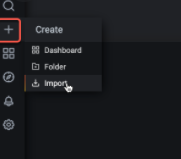
1. Lets Import dashboard with ID 6742. Go to option with + sign on the left panel and choose last option ‘import’.

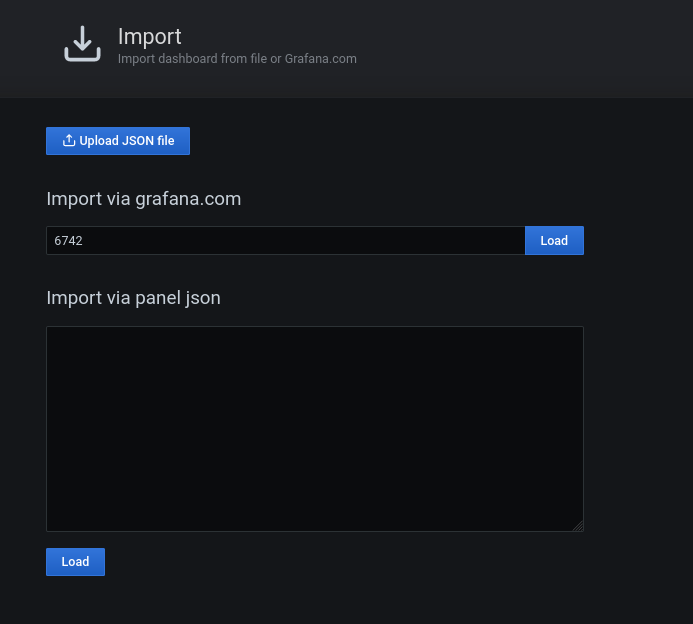
2. In next screen, pass dashboard ID 6742 and press button Load. You can also use JSON file entries instead of ID, I will use ID here in this sample configuration. Here select ‘Prometheus’ from the drop down list and click ‘Import’ and it’s all set!

3. Now this will bring the final dashboard showing lot’s of PostgreSQL metrics and their current values.

Hope It Helped!
Prashant Dixit
Posted in Uncategorized | Tagged: , , , , | 13 Comments »

Thanks Percona for this great product called PMM (Percona Monitoring & Management Server)

Posted by FatDBA on December 2, 2020

Hi Guys,

For one of our customer we recently moved from on-prem to AWS cloud and we moved our entire infrastructure along with our MySQL & PostgreSQL Clusters. The very next question that started bothering us is to look out for any solid, stable and reliable monitoring and performance management tool, and then we learned about Percona’s Monitoring & Management Server (PMM).

After trying the setup we are pretty satisfied with it’s performance as it fulfils all our expectations from any monitoring tool to monitor our applications and databases. We found the product best in terms of Cost (comes with an hourly price of only $ 0.10/hr), highly secure (with SSL encryption) and offers some really cool and smart features.
There are many features what it offers, but being a long time Performance Consultant (DBA) I personally found the ‘Query Analytics’ section more useful and impressive. It has got everything what you need to know for your real-time workload, it provides an in-depth analysis of your queries i.e. execution plan, latency information, query fingerprints etc. This can provide very useful at the time when you have any problem in hand and want to deep dive in and want to know what all is going on with your system at the statement level.

It has got great integration with Grafana platform too, great data visualizations in the form of dashboards etc.

I will recommend this tool for people who are looking for any good stable monitoring platform along with performance administration tool. Not only for PostgreSQL & MySQL but it’s available for other platforms too like Amazon RDS MySQL, Amazon Aurora MySQL, MongoDB, Percona XtraDB Cluster and ProxySQL.

It’s available on both AWS and Azure markets.

Link to AWS Marketplace : https://aws.amazon.com/marketplace/pp/B077J7FYGX?qid=1605533229523&sr=0-1&ref_=srh_res_product_title

Link to Azure Marketplace: https://azuremarketplace.microsoft.com/en-us/marketplace/apps/percona.pmm_2?tab=Overview


Hope It Helped!

Prashant Dixit
Posted in Uncategorized | Tagged: , , | Leave a Comment »